BFCM 2026 Note:
BFCM 2026 temporary guidance: RCS for Business works as usual during BFCM, but some RCS settings are locked from October 23 through December 8. During this period, you can't:
- Change your targeting strategy (Visibility AI or Maximize Reach)
- Change your A/B test traffic split
- Launch a new RCS for Business agent or program
You can still submit changes to your existing RCS for Business agent. For questions, contact your CSM.
RCS for Business provides significant opportunities for brands to share rich experiences with their customers. As RCS serves as a global standard for mobile messaging across various devices and operating systems, this best practices guide provides a framework for delivering RCS for Business messages that prioritize performance and usability. RCS messages tend to perform best when they're broadly relevant to your audience, so they shine in your highest-impact promotional and merchandising moments.
RCS messages come in two forms. A Rich Message is a text-only message delivered from your branded, verified sender, and can still include a link preview and a Suggested Action. A Rich Media Message adds images, video, Rich Cards, and Carousels. The best practices below apply once RCS is set up on your account.
Below you can find detailed best practices on available RCS for Business functionality:
- Best practices for Text-Only Messages (Rich Messages)
- Best practices for Rich Cards
- Best practices for Carousels
- Best practices for Suggested Actions
Best Practices for Sending RCS for Business Text-Only Messages (Rich Messages)
What are Rich Messages?
Text-only messages (also called Rich Messages, or the RCS equivalent to SMS messages) are messages with no image or card attached. They're delivered from your branded, verified sender, with your name and logo on the messaging thread and a link preview when you include a URL. You can build them natively in the Attentive platform.
When should you consider using Rich Messages?
Rich Messages are a great fit for conversational, time-sensitive, and transactional moments, such as flash sales, back-in-stock alerts, reminders, and shipping or order updates. They're also the simplest way to bring the branded, verified-sender experience of RCS to your program without producing new creative.
What to keep in mind when using Rich Messages:
- Keep your link in the body: We’ve seen consistently with Attentive customers that including both a link in the message body and a button outperforms using just a button or a link as the CTA. We heavily encourage that all customers include both CTA options in order to maximize Rich Message performance.
- Lead with what matters: Open with your most important point and keep copy concise. A Rich Message supports up to 160 characters.
- Use emojis and special characters freely: RCS supports a wider range than SMS without breaking your message into additional segments.
- The branded sender is the value: Even without media, subscribers see your verified name and logo the moment your message arrives, which builds trust over a standard SMS thread.
Before you send a Text-Only Message:
| Best Practice |
|---|
| Copy is concise and leads with the single most important message |
| A clear, tappable link is included in the body |
| Your branded sender name and logo display correctly in a test send |
| (Optional) A single Suggested Action is added for a clearer CTA |
Best Practices for Sending RCS for Business Rich Cards
What are Rich Cards?
Rich Cards provide a functional method for you to deliver media to subscribers via text messaging. Capable of supporting various media types, including high-resolution images and videos, Rich Cards serve as a foundational component of RCS messaging and are integrated into other features, such as Carousels.
When should you consider using Rich Cards?
Rich Cards are most useful when there’s a single product or event that you want to promote to your audience. They provide both an opportunity to encourage discovery directly within the messages application and a clear CTA to make sure customers understand what the ‘next best action’ is.
What to keep in mind when using Rich Cards:
To help ensure content displays best on all device types, we highly recommend following the best practices below:
- Header: The header text of your Rich Card is the main piece of content people will read when they receive an RCS message from your brand. It is the most important piece of content to optimize. Make sure to keep it brief (less than 80 characters), and share the most important message you’d like to get across to your audience.
- Description: The description of your Rich Card is less important than the header, since it displays in light text, and appears in a smaller font on iOS. We recommend using it to add editorial content, fun quips, or anything not essential to your message.
- Media: Media is a fantastic way to show off the product/promotion you’re looking to highlight to your audience. We recommend not including text in media due to both accessibility limitations, and media scaling across devices causing text to not display properly.
Supported media types include:
- Images (Up to 10MB): JPEG/JPG, GIF, PNG
- Video (Up to 10MB): M4V, MP4, MPEG, MPEG-4, WebM - Require users to tap ‘play,’ don’t autoplay
Note: GIFs are currently not supported on RCS due to them not ‘autoplaying’ within the Apple phone UIs. We are working closely with our major partners on a resolution here, and will provide updates as this functionality is fixed.
A great example of top-performing Rich Card copy:
- Title: Our Vitamin C Serum is here!
- Description: Reveal radiant skin with our most powerful brightening serum
Before you send a Rich Card:
| Best Practice | |
★ Header text is 80 characters or less (and tap-worthy!) Remember! Your message/header text is the most important part of your message. Assume that this is all a shopper will read, and make sure to optimize before hitting send. | |
| Media file (images or video) size is <10 MB | |
| Media file format is one of the following: JPEG/JPG, GIF, PNG, M4V, MP4, MPEG, MPEG-4, or WebM | |
| Description text is 110 characters or less | |
| There are 4 or fewer Suggested Actions | |
| Each Suggested Action (button text) is 25 characters or less |
Best Practices for Sending RCS for Business Carousels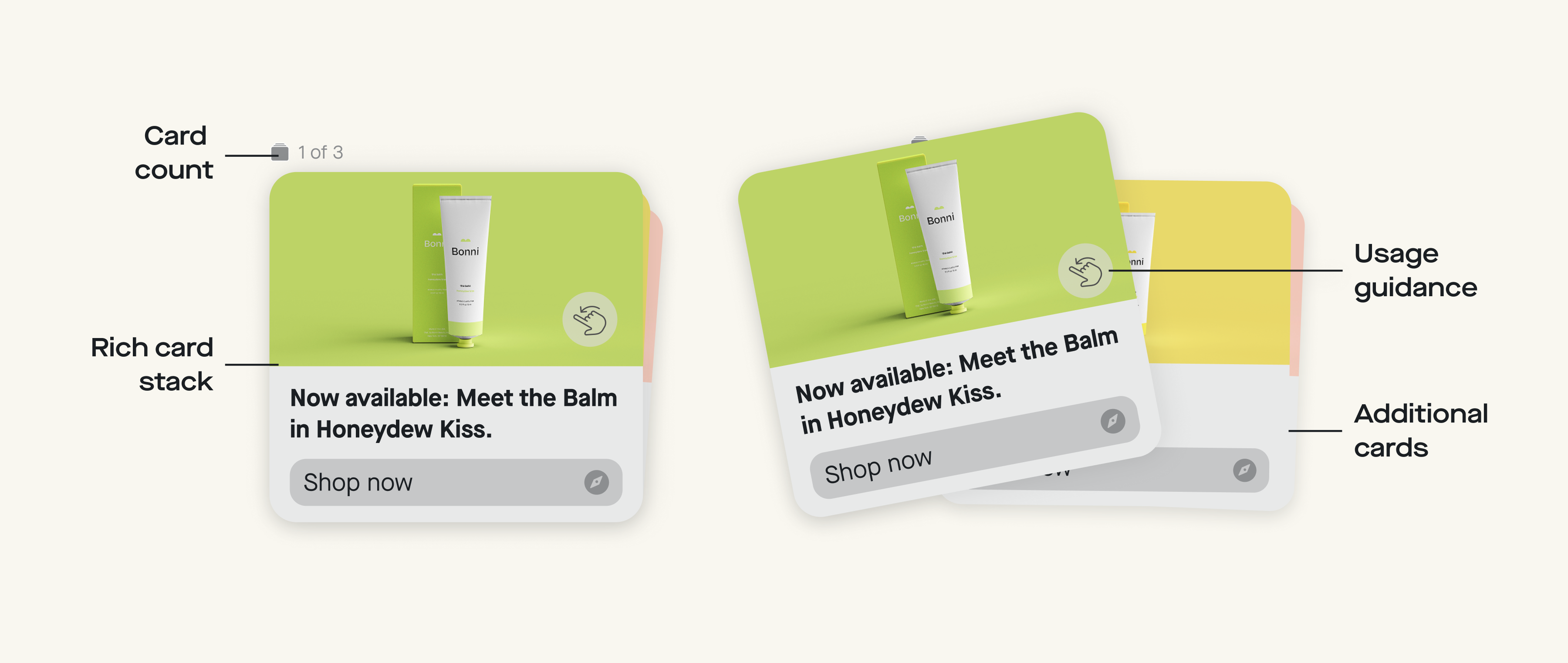
What are Carousels?
Carousels unlock a way to promote multiple products simultaneously in one “Rich Card Stack.” Since Carousels are essentially Rich Cards stacked on top of each other, they support the same media types, but have specific limitations around file sizing (see below).
When should you consider using Carousels?
Carousels work best when you have multiple, related products to promote. We recommend promoting products within the carousel that are simple, straightforward, and very easy to understand by a consumer who may only be scanning the message for a few seconds.
What to keep in mind when using Carousels:
- Swipe Guidance: Since Carousels are still a new media type for the majority of your audience on the text channel, we recommend editing swipe guidance into the first card shown in the Carousel (see the above image for an example).
- Carousel Copy: On Carousel cards specifically, lean on the header and keep descriptions short — or skip them entirely. Because each card's height is fixed, longer description text competes with the image and can cause it to crop, especially on newer versions of iOS.
- Carousel Card Count: Carousels can support up to 6 cards on the Attentive platform. The first Carousel card will receive the most engagement, add your best piece of content, here! We've seen variance in Carousel performance based on length, and recommend any brand using the new format to test the inclusion of more or fewer cards. If you do decide to include more than 3 cards, we recommend using the button in your first and last card to link to the collection on your website.
While cards in a Carousel follow the same guidance as individual Rich Cards do, there are a couple notable differences regarding the media included:
Note: All media in a Carousel should be formatted to a 16x9 aspect ratio for best results, and a Carousel can support up to 100MB total of media. Supported media types include:
- Images (Up to 10MB): JPEG/JPG, PNG
- Video (Up to 10MB): M4V, MP4, MPEG, MPEG-4, WebM
Note: GIFs are currently not supported on RCS due to them not ‘autoplaying’ within the Apple phone UIs. We are working closely with our major partners on a resolution here, and will provide updates as this functionality is fixed.
Great use cases for Carousels include:
- New product bundle releases
- Bestseller promotions
- Category promotions
Before you send a Carousel:
| Best Practice | |
★ Header text is 80 characters or less (and tap-worthy!) Remember! Your message/header text is the most important part of your message. Assume that this is all a shopper will read, and make sure to optimize before hitting send. | |
| ★ Carousel is “cohesive” and tells a clear story that's easy to understand in a few seconds. | |
| Media file size (images or video) is <10 MB | |
| Total carousel file sizes add up to <100 MB | |
| Media file format is one of the following: JPEG/JPG, GIF, PNG, M4V, MP4, MPEG, MPEG-4, or WebM | |
| Media contains ‘swipe’ guidance | |
| Description text is 110 characters or less | |
| CTA (button text) is 25 characters or less | |
| Carousel contains 6 or fewer cards |
Best Practices for RCS for Business Suggested Actions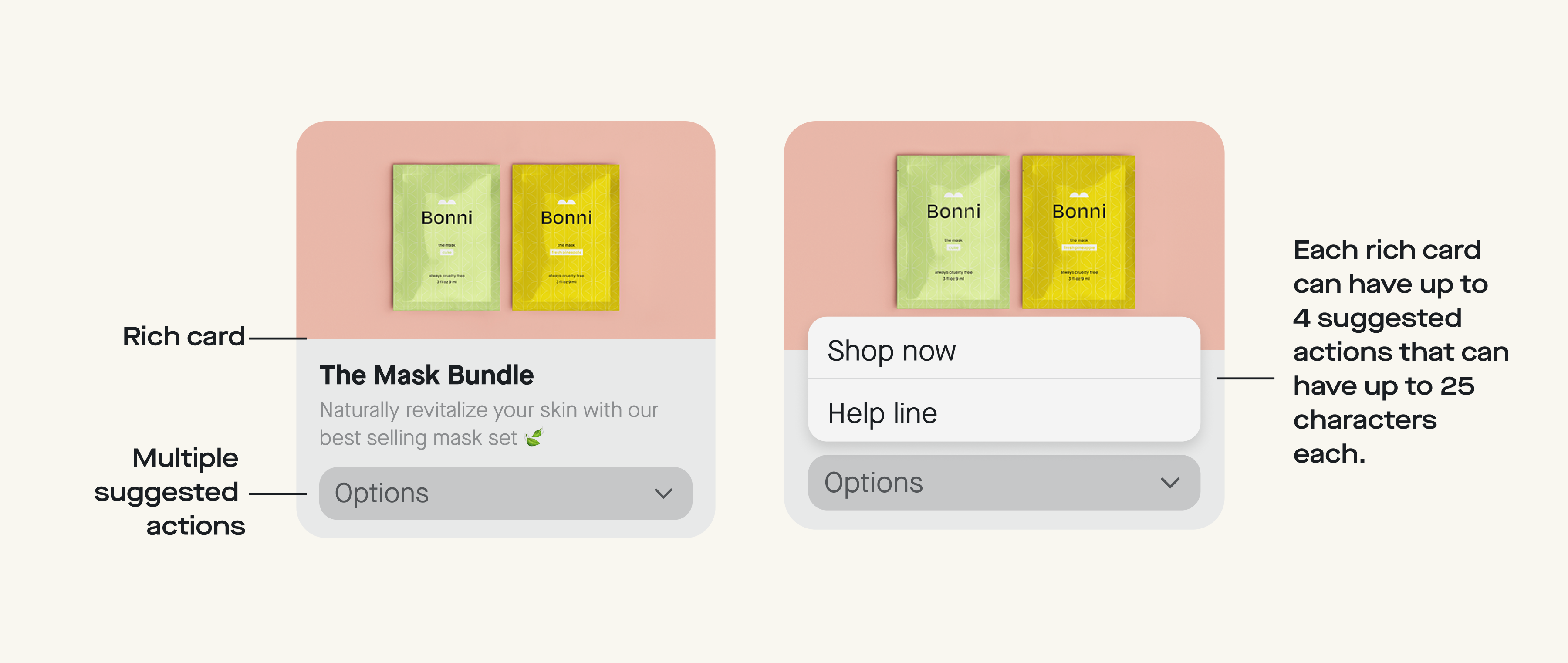
What are Suggested Actions?
Suggested actions are clickable buttons, either embedded in the rich media card or displayed separately, that make it easy for users to choose either one, or from multiple CTAs.
Note: While the above examples show multiple buttons, Suggested Actions themselves refer to either single, or multiple buttons embedded in Rich Media Cards.
When should you consider using Suggested Actions?
Suggested actions should be used in all Rich Media Cards that you send to your audience, as they provide a clear, clickable CTA directly in messages, and stand out from the other content included.
Multiple Suggested Actions are recommended when there are multiple ‘next best actions.’ These may include visiting your site, contacting a CX channel to gather more product context (i.e. sizing questions), visiting a rewards wallet, and more.
If there has been particularly high top-of-funnel shopper drop-off, consider incorporating multiple Suggested Actions into your next campaign to give customers the option to dig more into discovery before they add anything to their cart!
What to keep in mind when using Suggested Actions:
Approach copy for suggested actions the same way you would for any call-to-action on your website or in an email. Keep it short, clear, and specific about what action the subscriber will take (e.g., “Shop [product name]” to open a product page on your website).
When there’s more than one suggested action, iOS combines them into an ‘Options’ button. Tapping the ‘Options’ button opens a menu that shows each action. You can include up to four suggested actions, but we recommend using just one per card to reduce friction.
Our favorite examples of Suggested Actions include:
- Shop New Arrivals
- View My Picks
- See Bestsellers
- View Size Guide
- Chat with Support
- Ask a Question
- Write a Review
- Reorder Now
- Remind Me Later